From Domovea to Matter with AI: transfer your entire configuration in minutes
Your Domovea backup already contains every light, blind, room and KNX group address. An AI assistant like Claude or ChatGPT turns it into a ready-to-import configuration, and your KNX home shows up in Apple Home, Google Home and every other Matter app.
 Christina
On this page
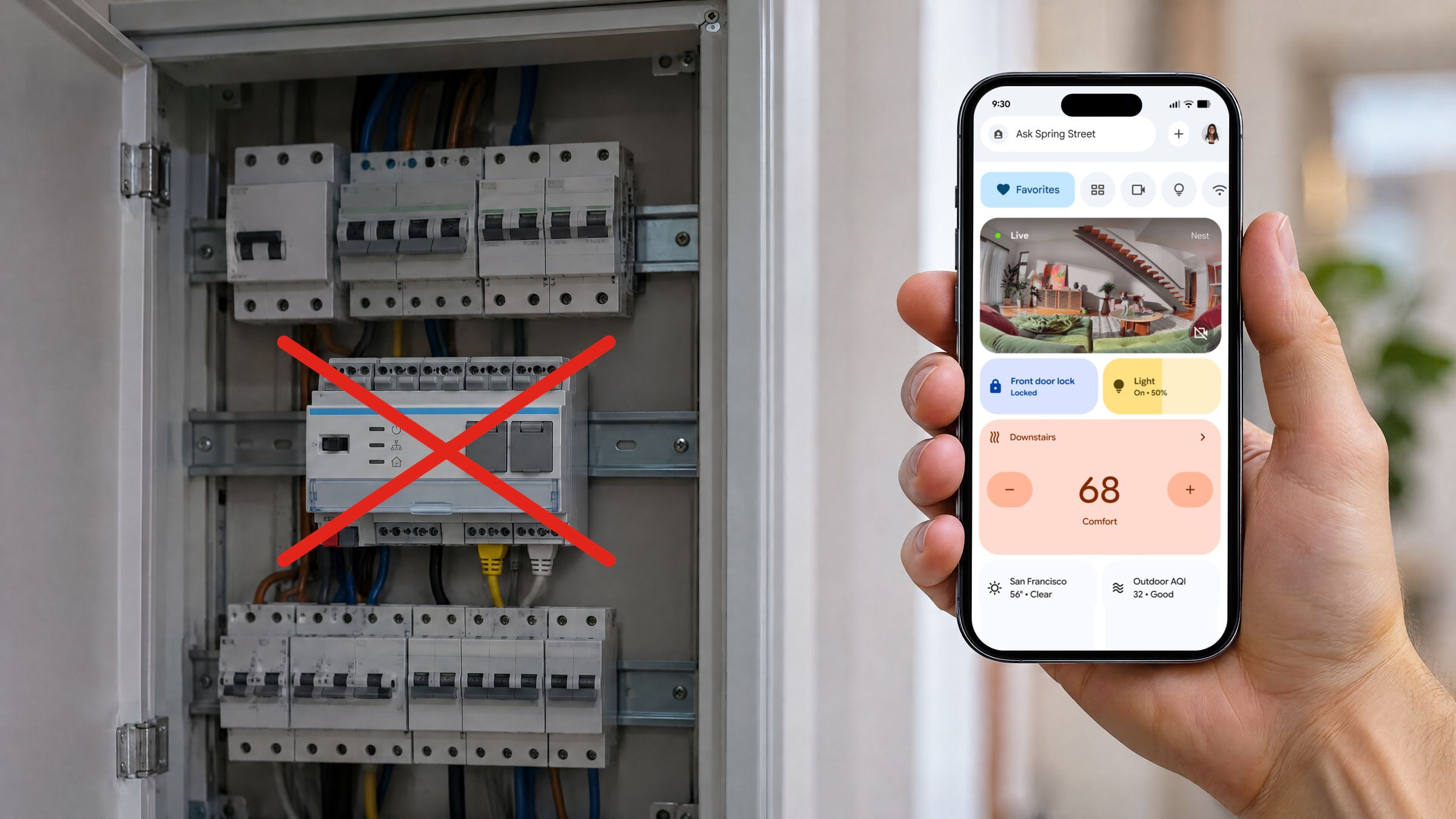
Hager has discontinued Domovea. If your KNX lights and blinds ran through a Domovea server, you now need something new, but it doesn't have to be another closed system. What most people really want is simple: one app to control their home and gadgets, voice assistants in case their hands are full and a secure smart home environment where everything runs locally.
Matter makes this possible. Your KNX installation stays as it is, only the old server is replaced by the Atios KNX Bridge, which brings every KNX device into Matter.
Until now, the one step that took time was copying every group address by hand. You no longer need to. Your Domovea backup (.ddb file) already contains all devices, rooms and KNX group addresses. An AI assistant with file upload, for example Claude or ChatGPT, turns it into a ready-to-import configuration in a few minutes.
What you get with Matter
- Your favourite app: control your whole home in Apple Home, Google Home, Amazon Alexa or Samsung SmartThings.
- Voice control: "Hey Siri, turn off all lights" or "Hey Google, close the blinds", and your KNX system responds.
- Everything in one place: add Matter devices like sound systems, cameras, door locks or vacuum robots and use them together with your KNX lights and blinds in scenes and automations.
- Local and secure: everything runs locally on your network, even when the internet is down.
1. Export your Domovea backup
Export a backup from your Domovea configuration tool. You get a file that ends in .ddb.
2. Let AI convert it
Paste the prompt below into ChatGPT or Claude together with your .ddb file. At the end, the AI lists the devices it skipped because they have no address, and the blinds without a position address.
I'm replacing my Hager Domovea server with an Atios KNX Bridge. Attached is my Domovea backup (.ddb). Please convert it into a KNX Bridge configuration JSON file.

The .ddb file:
- It is a ZIP archive. database.xml lists the devices, the rooms (Groups) and the KNX group addresses.
- Addresses are 16-bit hex values: main = value>>11, middle = (value>>8)&7, sub = value&255 (e.g. 54A0 = 10/4/160).

Rules for the output:
- Use exactly the structure of the template below. Copy each accessory type as it is and only change id, name, timestamp, room_id, room_order and the "control"/"status" addresses.
- "control" is the address the Bridge writes, "status" the address it listens to. One address per field (main/middle/sub, 0-31/0-7/0-255), no comma lists. Remove the field if there is no address.
- Rooms: one per Domovea room, id "rm_" + 8 lowercase letters/digits, "order" from 0.
- Accessories: unique 8-character id [A-Za-z0-9_], timestamp in ms, room_id of an existing room, room_order from 0 within each room.
- Names: letters, numbers and spaces only (no accents or special characters).

Device types:
- Light (type 0): "On" in singleSettings; for dimmers also "Brightness". Keep "selected": "Single".
- Switch (type 1) and outlet (type 2): "On".
- Blind (type 3): Movement = up/down, Stop = stop, TargetPosition (control) and CurrentPosition (status) = position. Position is required. Tilt only if available.
- Thermostat (type 30): TargetTemperature, CurrentTemperature, OnOff and modes if available. Keep the parameters.

At the end, list the devices you skipped (no address) and the blinds without position addresses. Give me the final JSON file to download.

Template:
{"accessories":[{"id":"aB3dE5gH","timestamp":1763380000000,"name":"Living Room Ceiling","characteristics":[{"name":"channelSettings","label":"Channel Settings","display":"segmented","options":["Single","Tunable White","Colour"],"selected":"Single","items":[{"name":"singleSettings","label":"Single","display":"group","items":[{"name":"On","dpt":1001,"display":"input","required":true,"permission":3,"control":"1/0/1","status":"1/0/2"},{"name":"Brightness","dpt":5001,"display":"input","required":true,"permission":3,"control":"1/0/3","status":"1/0/4"}]},{"name":"tunableWhiteSettings","label":"Tunable White","display":"group","items":[{"name":"On","dpt":1001,"display":"input","required":true,"permission":3},{"name":"Brightness","dpt":5001,"display":"input","required":true,"permission":3},{"name":"ColorTemp","dpt":5001,"display":"input","required":false,"deprecated":true,"permission":3},{"name":"ColorTemp K","dpt":7600,"display":"input","required":true,"permission":3}],"params":[{"left_col":"Physical CCT Limits","right_col":"Value","display":"header"},{"label":"Colour temperature WW","name":"warm_kelvin","display":"colourTemperature","value":2700},{"label":"Colour temperature CW","name":"cold_kelvin","display":"colourTemperature","value":6500}]},{"name":"hsvValueSettings","label":"Colour","display":"group","items":[{"name":"On","dpt":1001,"display":"input","required":true,"permission":3},{"name":"HSV","dpt":232600,"display":"input","required":true,"permission":3}]}]}],"parameters":[],"type":0,"version":2,"room_id":"rm_a1b2c3d4","room_order":0,"disabled":false},{"id":"cD4eF6hJ","timestamp":1763380000000,"name":"Living Room Switch","characteristics":[{"name":"On","info":"DPT 1.001 Bool (1: On, 0: Off)","display":"input","required":true,"statusRequired":true,"control":"1/0/9","status":"1/0/10"}],"parameters":[],"type":1,"version":1,"room_id":"rm_a1b2c3d4","room_order":1,"disabled":false},{"id":"eF5gH7jK","timestamp":1763380000000,"name":"Living Room Outlet","characteristics":[{"name":"On","info":"DPT 1.001 Bool (1: On, 0: Off)","display":"input","required":true,"statusRequired":true,"control":"1/0/11","status":"1/0/12"}],"parameters":[],"type":2,"version":1,"room_id":"rm_a1b2c3d4","room_order":2,"disabled":false},{"id":"gH6jK8mN","timestamp":1763380000000,"name":"Living Room Blind","characteristics":[{"name":"Movement","display":"input","info":"DPT 1.008 Up/Down","control":"1/0/13","status":"1/0/14"},{"name":"Stop","display":"input","info":"DPT 1.010 Stop","permissions":"w","control":"1/0/15"},{"name":"TargetPosition","permissions":"w","info":"DPT 5.001 Percentage (0-100%)","display":"input","required":true,"control":"1/0/16"},{"name":"CurrentPosition","permissions":"r","info":"DPT 5.001 Percentage (0-100%)","display":"input","status":"1/0/17"},{"name":"TargetTilt","permissions":"w","info":"DPT 5.001 Percentage (0-100%)","display":"input","required":true},{"name":"CurrentTilt","permissions":"r","info":"DPT 5.001 Percentage (0-100%)","display":"input"}],"parameters":[{"type":0,"displayName":"Invert open and close","name":"InvertPosition","value":false}],"type":3,"version":1,"room_id":"rm_a1b2c3d4","room_order":3,"disabled":false},{"id":"jK7mN9pQ","timestamp":1763380000000,"name":"Living Room Thermostat","characteristics":[{"name":"TargetTemperature","alias":"Set","info":"DPT 9.001 Temperature °C","display":"input","control":"1/0/32","status":"1/0/33"},{"name":"CurrentTemperature","alias":"Current","permissions":"r","info":"DPT 9.001 Temperature °C","display":"input","status":"1/0/34"},{"name":"OnOff","info":"DPT 1.001 Bool (1: On, 0: Off)","display":"input","control":"1/0/35","status":"1/0/36"},{"name":"TargetMode","alias":"Mode","permissions":"w","info":"DPT 20.102 Mode","display":"input","control":"1/0/37"},{"name":"CurrentMode","permissions":"r","info":"DPT 20.102 Mode","display":"input","status":"1/0/38"},{"name":"SummerWinterMode","alias":"Mode Limitation","permissions":"r","info":"DPT 1.100 Heat/Cool","display":"input","status":"1/0/39"}],"parameters":[{"type":1,"displayName":"Supported modes","name":"supportedModes","value":"0","selection":["Heating","Cooling","Heat + Cool"]},{"type":1,"displayName":"Off","name":"ModeOff","value":"2","selection":[0,1,2,3,4]},{"type":1,"displayName":"Heat","name":"ModeHeat","value":"1","selection":[0,1,2,3,4]},{"type":1,"displayName":"Cool","name":"ModeCool","value":"3","selection":[0,1,2,3,4]},{"type":0,"displayName":"Thermostat sends DPT 1.001 (On / Off)","name":"targetModeBit","value":0},{"type":1,"displayName":"Mapping","name":"SeasonMapping","value":"0","selection":["Summer = Cool = 0 / Winter = Heat = 1","Summer = Cool = 1 / Winter = Heat = 0"]}],"type":30,"version":1,"room_id":"rm_a1b2c3d4","room_order":4,"disabled":false}],"rooms":[{"id":"rm_a1b2c3d4","name":"Living Room","order":0,"icon":"sofa"}],"version":2,"board_type":1}
3. Import the file
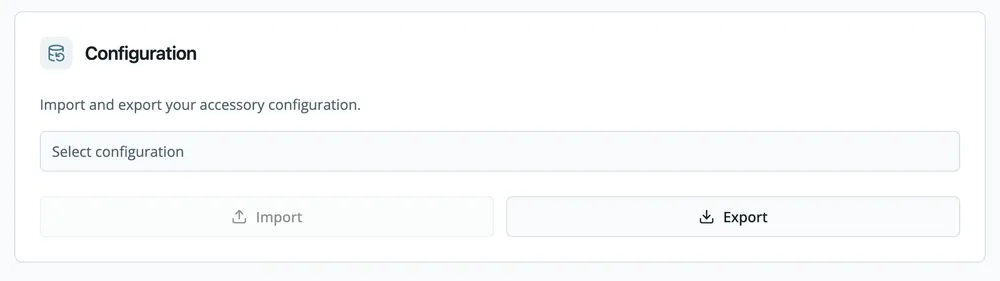
Open your browser and go to setup.atios.ch to find your KNX Bridge. Import the generated JSON file in System Settings > Configuration and check your devices.
4. Open your home in Apple Home or Google Home
Scan the Matter QR code with Apple Home, Google Home or another Matter app. All your lights and blinds appear in the app, and you can control them by tap, by voice or in your automations.
Prefer not to do it yourself?
Send your .ddb file to support@atios.ch and we will convert it for you.
Continue reading
What do you do when your light control outlives its support?
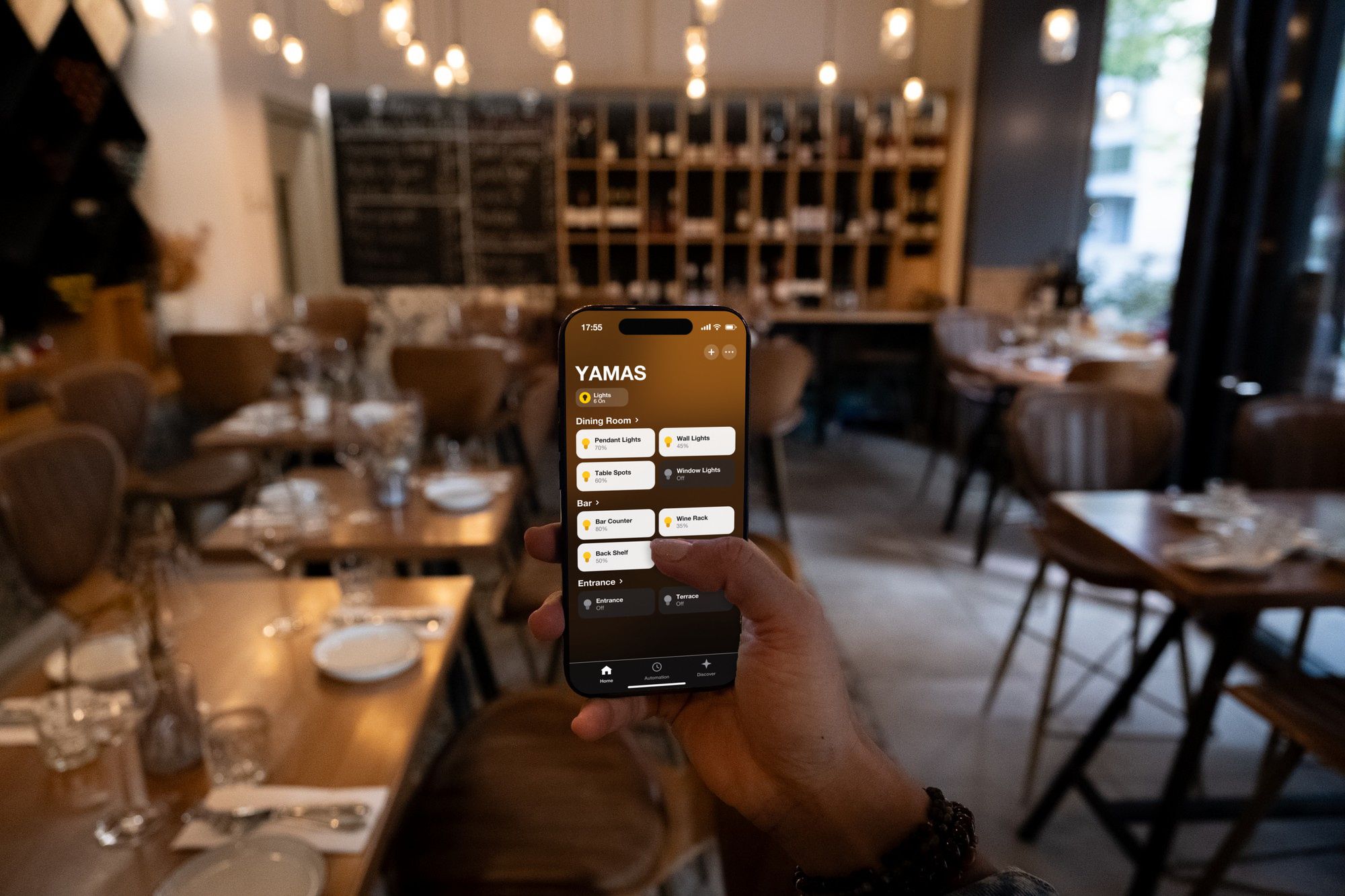
When the display of his lighting control broke, the only offer was a 7,000-franc screen with no guarantee. Petros from YAMAS ran into the biggest problem of closed systems - but was able to fix it all by himself.
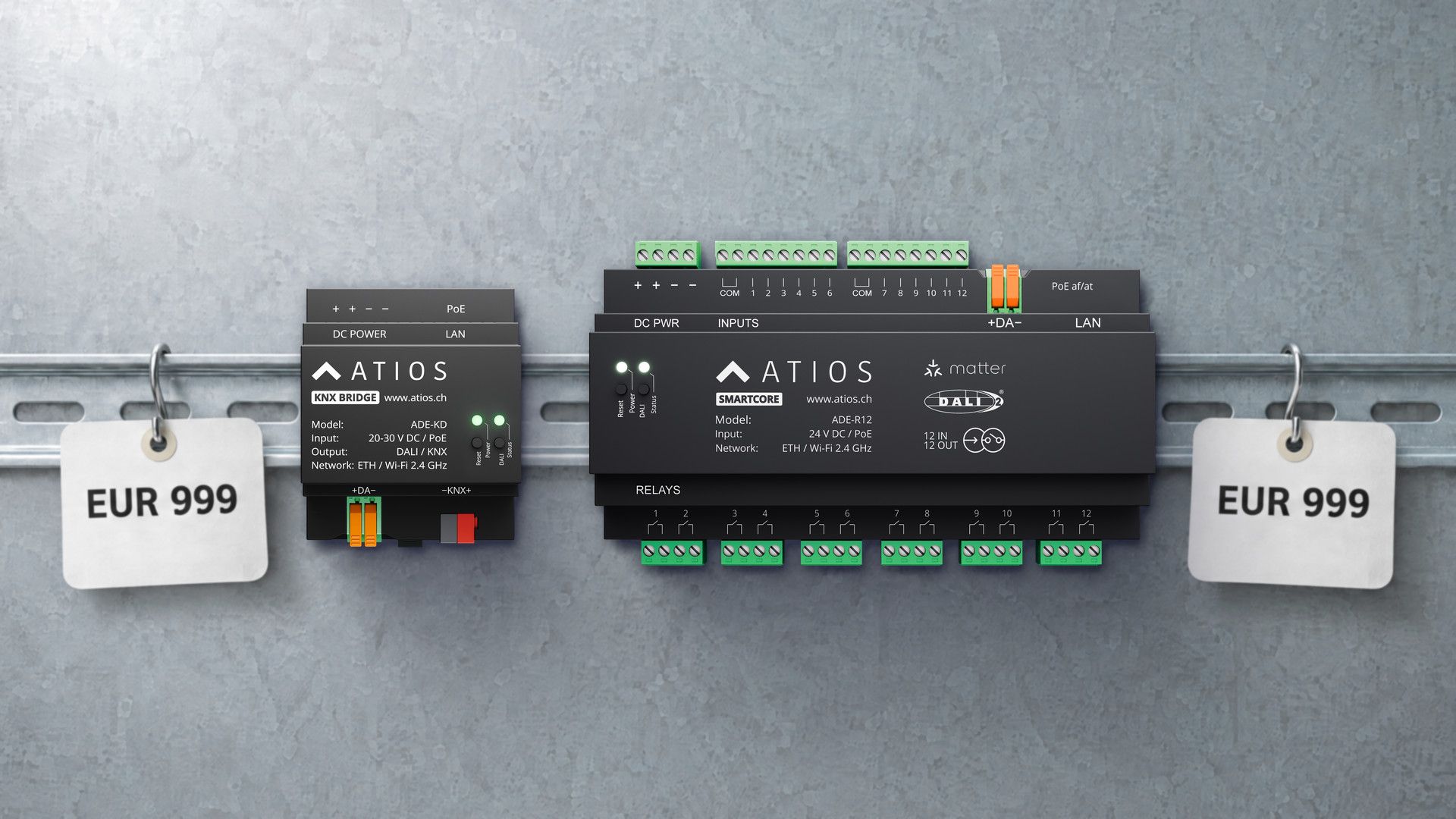
Why the KNX Bridge and the SmartCore are worth EUR 999
Continuous software development, new functions and better margins for installers and wholesalers.
How to Make Your Home Feel Expensive (Without Spending a Fortune)
The two things you feel first when you walk in are light and temperature, and neither one needs a big budget.