 Christina
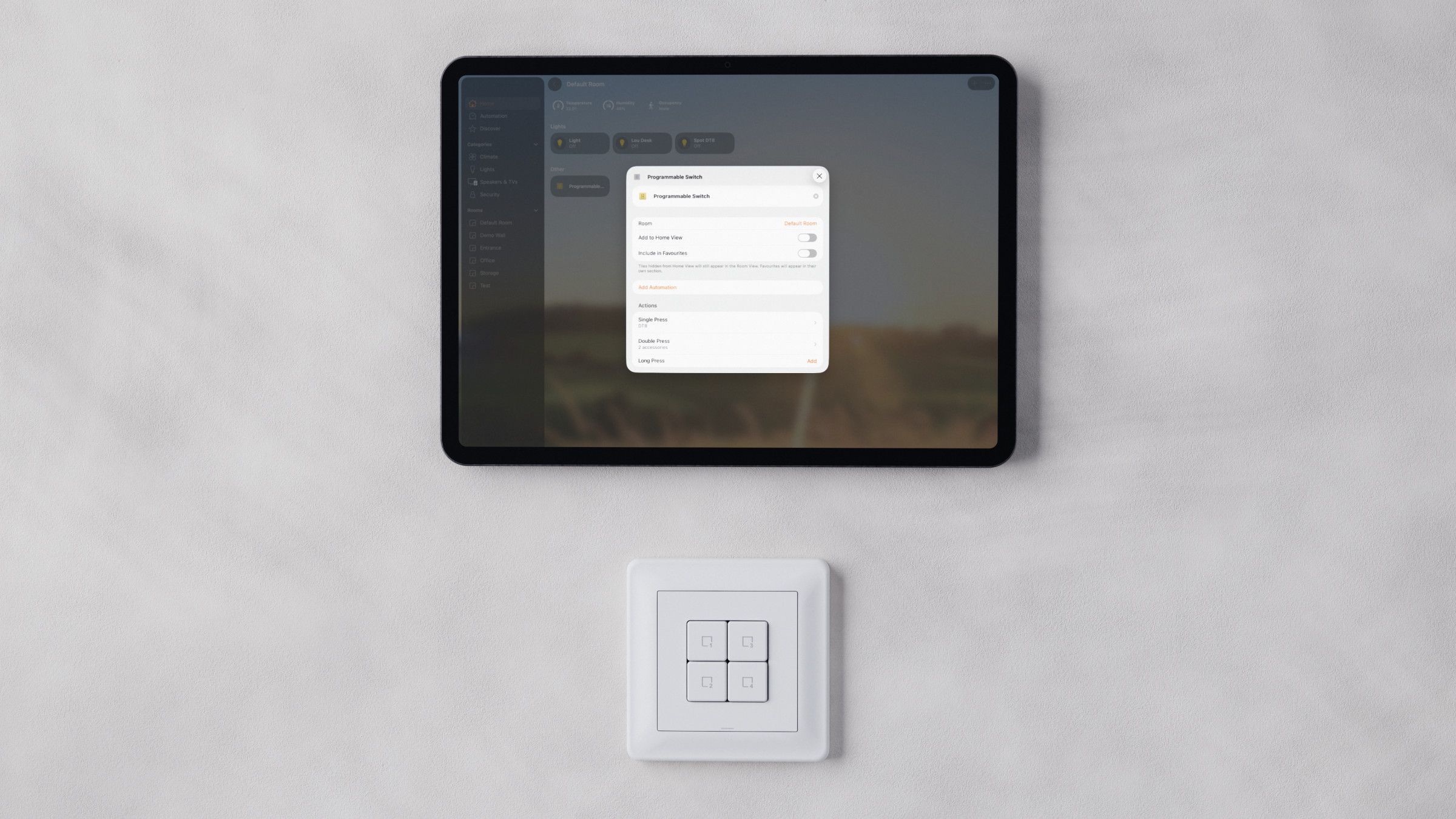
A switch on the wall usually turns one light on and off. A Programmable Switch is not a physical device: it is a way to represent a wall switch in your Matter app. With a Programmable Switch, a Wiser by Feller scene button, which the WiserPort finds by itself, becomes a trigger in your smart home app. One press could trigger a scene or control Matter devices in your ecosystem, also the ones that are not part of your Wiser installation.
What it is
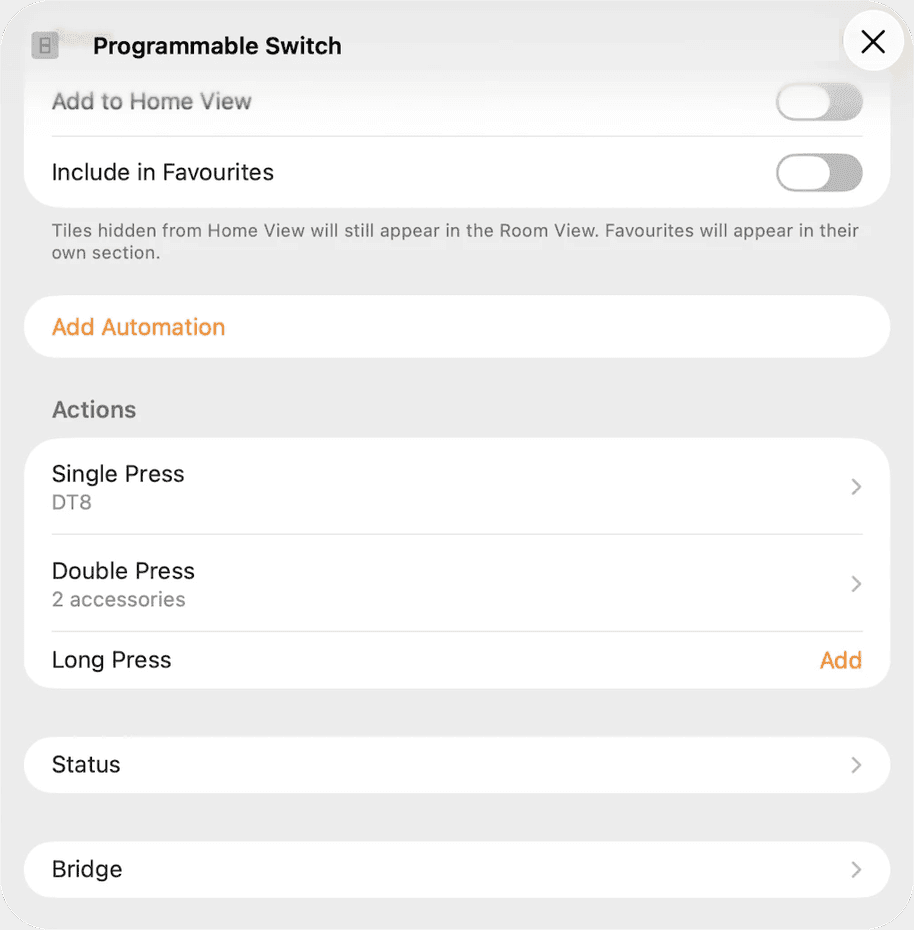 A Programmable Switch reports the button press of a Wiser scene button to your Matter app, and you decide in the app what happens when the button is pressed. In Apple Home, Google Home, SmartThings and Home Assistant a single, double and long press are separate triggers and each trigger can be linked to a single action. Alexa reads every press as a single press, so one button can start only one action.
Examples
- Wiser scene button → Programmable Switch → Philips Hue: one press switches your Hue lamps on.
- Wiser scene button → Programmable Switch → robot vacuum: one press starts your Matter-compatible robot vacuum when you leave the house.
- Wiser scene button → Programmable Switch → scene: one press starts your evening scene with lights and blinds.
How to add it
WiserPort
Buttons: Wiser scene buttons. The WiserPort detects them automatically.
- Open the Web Interface and go to Matter Bridge.
- Filter by type Scene Button.
- Turn on Enable Matter Sharing for the buttons you want.
- Click Save Changes.
If a change does not show in your app, click Save Changes again and reboot the WiserPort under System.
How to use it in your app
- After saving the new configuration in the Web Interface, the button appears in your Matter app as a Programmable Switch.
- Open the Programmable Switch in your app.
- Choose the press type: single, double or long press.
- Choose what it does, for example start a scene or switch off a light.
Full support
 Apple Home
 Google Home
 Home Assistant
 Samsung SmartThings
Partial support
 Amazon Alexa
Continue reading
Programmable Switch for SmartCore: use your wall switch to trigger scenes or control Matter devices
How a push button on a SmartCore input, or a DALI-2 button, triggers scenes and controls other Matter devices in Apple Home, Google Home and Home Assistant.
Programmable Switch for KNX Bridge: use your KNX push buttons to trigger scenes or control Matter devices
How a KNX push button, through the KNX Bridge, triggers scenes and controls other Matter devices in Apple Home, Google Home and Home Assistant.
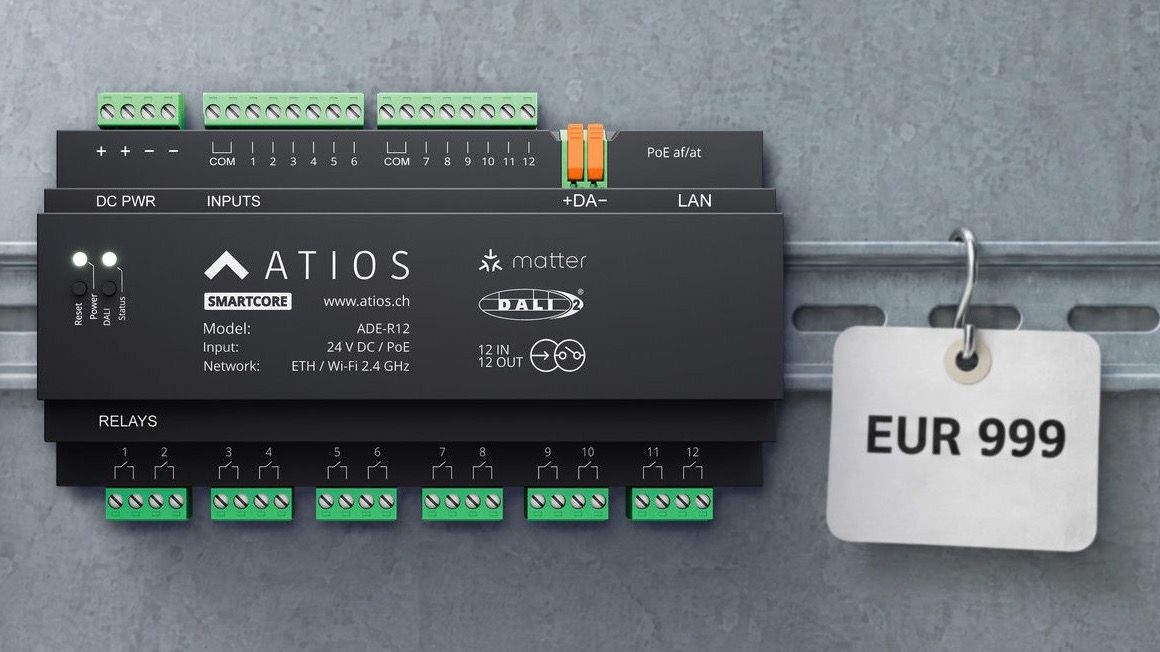
SmartCore: what you get for EUR 999
Matter, 12 relays, 12 inputs and a DALI-2 master in one device. No subscription, free updates.